
Lab 1: Create Composer Flow
Overview
With an account provisioned, Audrey will explore how she can quickly create a flow that reads patient information in a Google Sheet, and automatically create a new patient account record in Salesforce Health Cloud.
Lab 1 will guide you through setting up this automated flow, using simple, pre-built connectors and no code.
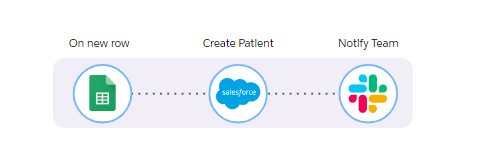
Setting up your systems for Composer Flow Build:
-
Now lets create a Patient Enrollment Form to collect the Patient information and save it into a google sheets. Copy & Paste the below URL in a new Google Chrome window. This will require you to login to a google account
Your instructor will provide google credentials.
-
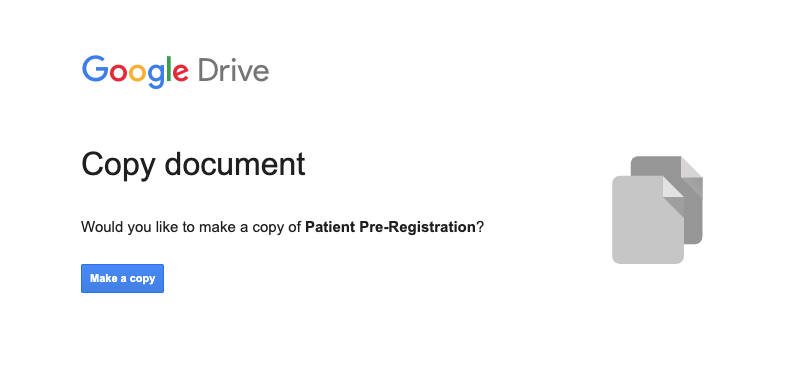
Enter the google credentials and Make a copy of the Patient Pre-Registration form.
-
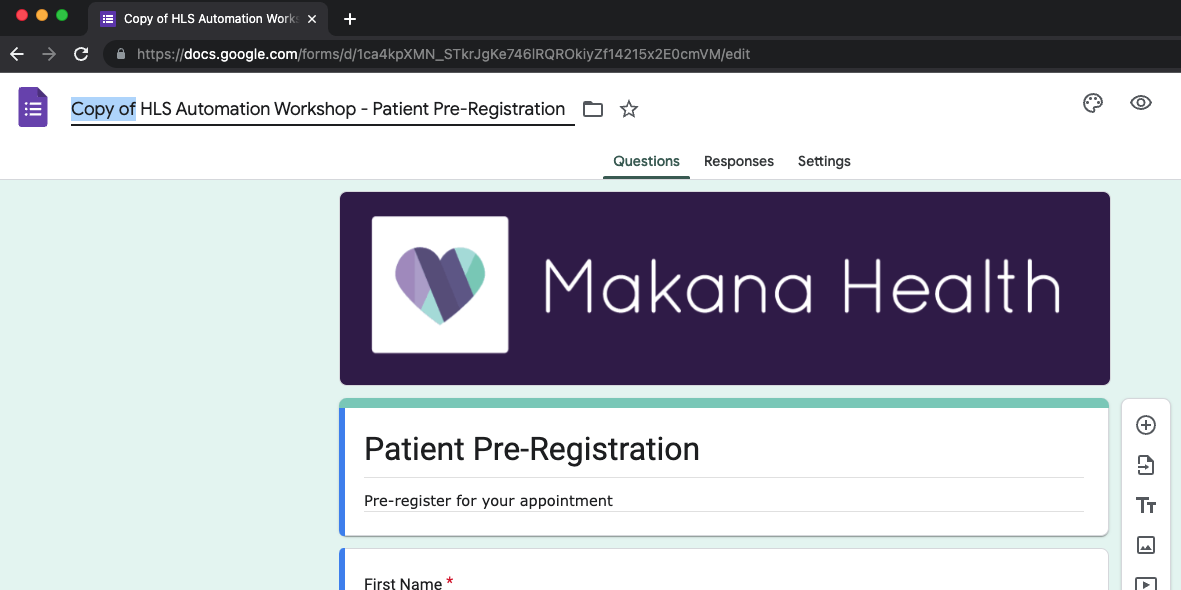
This will open the Google Form titled: Patient Enrollment Form. Rename the google form with the prefix of your initials
-
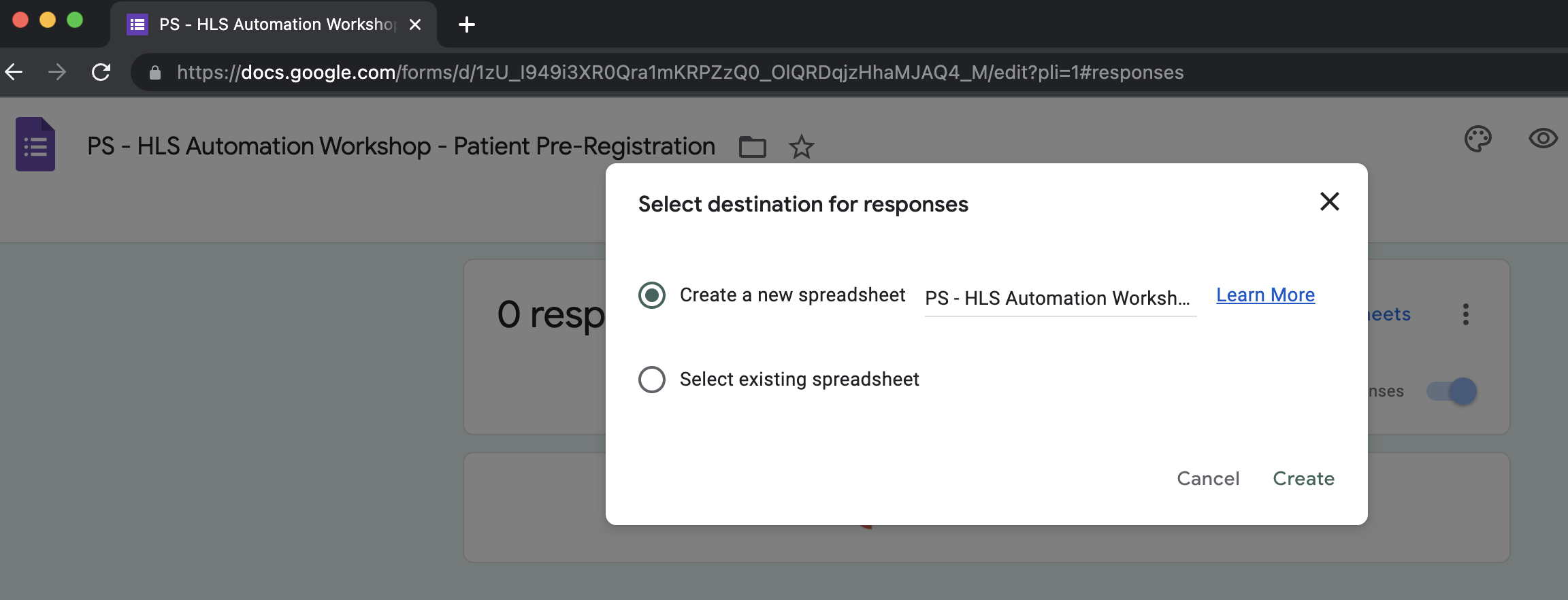
In the new copy - go to Responses and create a new Google Sheet to capture responses - also be sure to add your initials on the Google Sheet name.
-
-
In a new chrome tab, sign in to Slack. You’ll receive a Slack message when the flow is complete.
Use the "Sign in with Google" option to sign into Slack with the current Google Account.
In case if Slack asks for any security code to login, you can find that in the same gmail account.
Step 2: In MuleSoft Composer, clone the Composer Flow
-
In a new Google Chrome tab, log in to Mulesoft Composer using the below URL.
Your instructor will provide credentials.
-
Clone the flow named "HLS Automation Workshop - Patient Pre-Registration Flow ". Add your initials to the front of the flow name. (i.e. "JD - HLS Automation Workshop - Patient Pre-Registration Flow)
-
Click into the flow by selecting its name
-
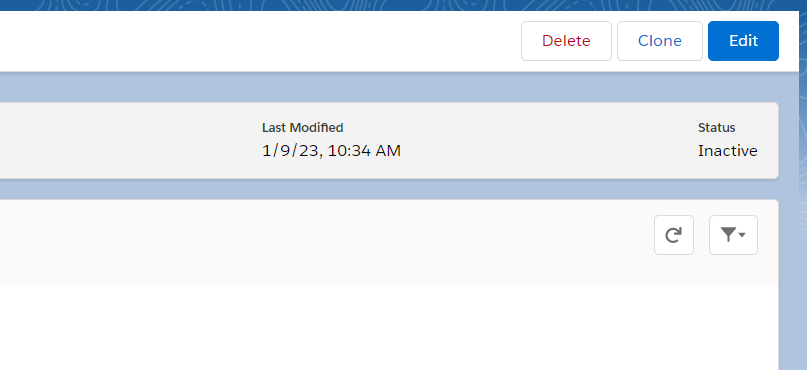
On the next page, click the "Clone" button
-
Click the pencil icon to rename the flow and save

-
-
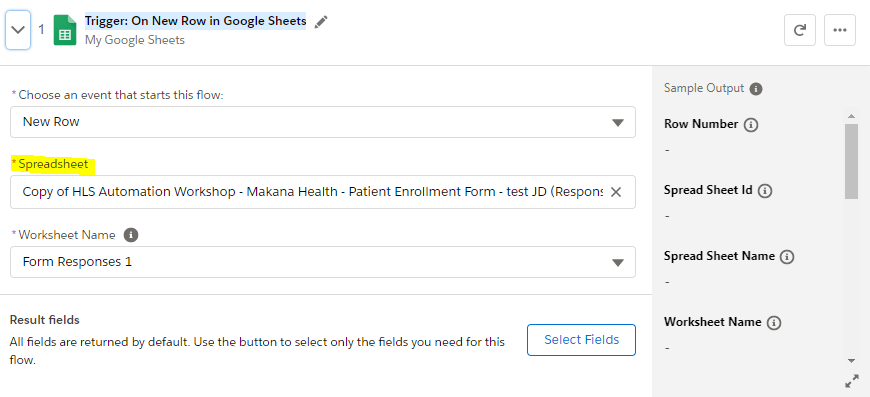
Expand the Google Sheets "Trigger: On New Row in Google Sheets" by clicking Caret right icon.
-
Change the sheet to the one you previously created with your initials. This sheet is connected to the copy of the Google Form that you created as well.
-
Select your newly created Worksheet Name from the drop down list.
-
-
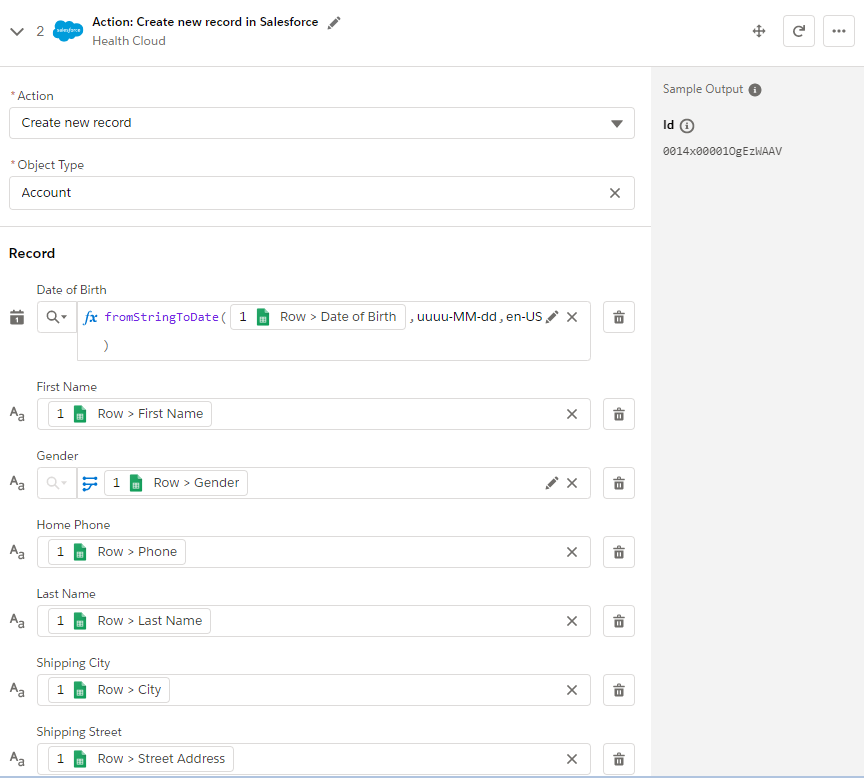
Salesforce - Create Account Record - Review the Data Pills (data populated from Google Sheets)
-
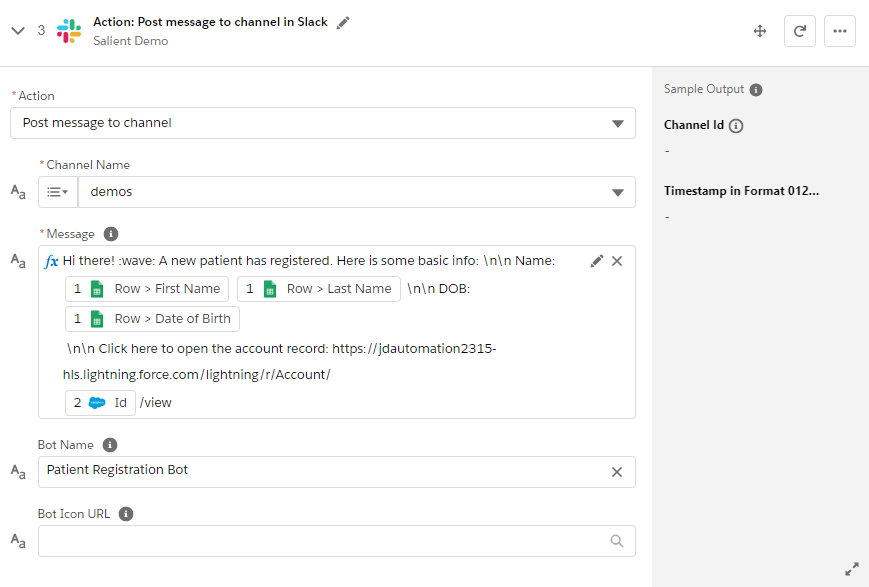
Slack message - Review the data pills and note the custom expression to create a user-friendly message
-
Review the subsequent Salesforce Create New Record and Slack Send Message steps to ensure the data pills in those steps are not showing any errors.
-
To See Data In Action:
-
Click Test and wait for the test to start
-
Open the Patient Pre-Registration google form copy you made with your initials in Preview Mode.
-
Add a new patient response with the following data:
-
First Name:
-
Last Name:
-
DOB:
-
etc.
-
-
Click Submit in the form
-
Go back to Composer to see the flow catch the trigger and wait for your Slack message!
When your slack message comes - notice the details of the patient that we mapped in Composer! Magical!!
-
Summary
In this lab, we saw how a business users without any coding experience can quickly create new digitally native workflows, and augment those workflows with helpful notifications.
Audrey is excited that she’s been able to contribute to creating a better patient experience, and saving her team a ton of manual effort in automating away boring data entry work.
As Audrey is preparing to publish the flow, she remembers that the patient records also need to be created in Open Hospital - a legacy Java App that doesn’t have any APIs. Audrey meets with Steven to discuss how to approach this problem…
Move on to Module 2 to learn more!!